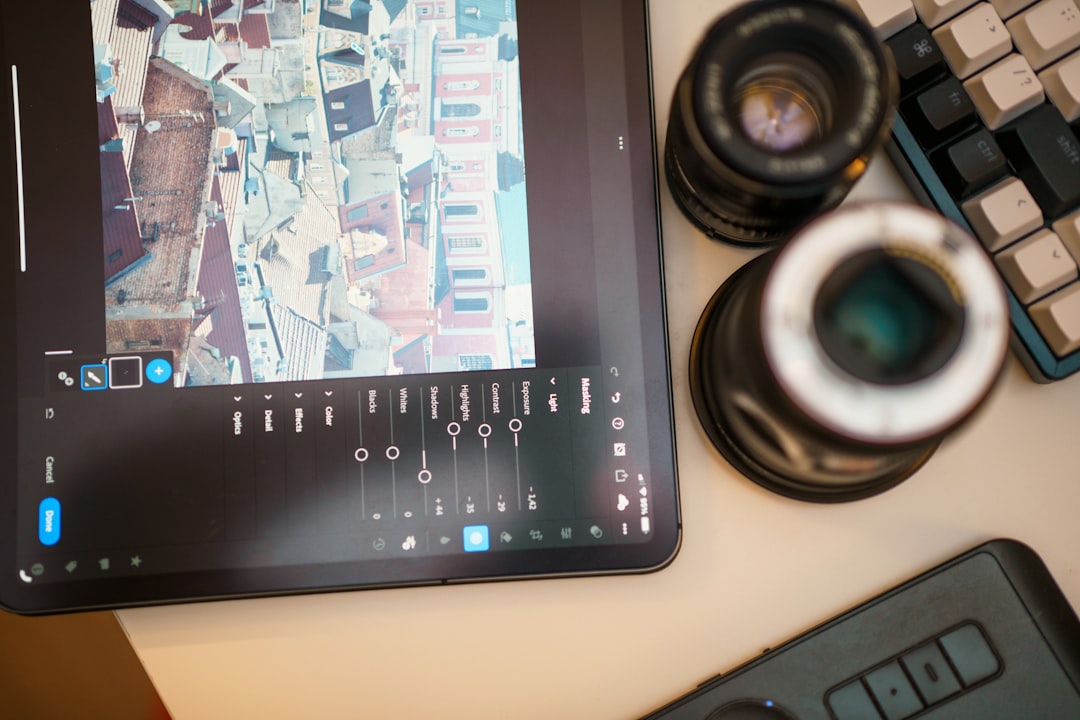
Let’s get those videos looking, sounding, and feeling good. You’re probably wondering what editing tricks actually make a difference, not just the fluff. Here’s the straight dope on 30 editing tips, broken down into easy-to-digest chunks, that will help your videos feel more polished and professional, without requiring you to be a Hollywood wizard overnight.
Getting Started: The Foundation of Good Editing
Before you even think about fancy transitions or color grading, a solid workflow makes everything smoother. Think of this as getting your ducks in a row so you can spend more time on the creative stuff.
Organize Your Assets with a Strategy
Chaos is the enemy of efficient editing. Dumping all your footage into one folder is a recipe for madness.
Create a Clear Folder Structure
Devote a few minutes to setting up a logical folder system. Think along these lines: “Projects” > [Your Project Name] > “Raw Footage,” “Audio,” “Graphics,” “Music,” “Exports.” Within “Raw Footage,” you could even break it down by day, scene, or camera used. This saves you searching for that one clip that’s crucial later on.
Keywording and Tagging
Most editing software allows you to add keywords or tags to your clips. Use this! Tag clips with descriptions of what’s happening, who’s in them, or even camera angles. It’s like having a super-powered search engine for your footage.
Rough Cut: The Bare Bones
Don’t get bogged down in perfection on your first pass. A rough cut is about getting the story down, not polishing it.
Get It Down First, Refine Later
Your primary goal in the initial cut is to lay out the essential shots in their chronological order, or the order that best tells your story. Trim out the really obvious mistakes – the shaky bits, the mumbled words, the shots that go on way too long. Don’t worry about perfect cuts or pacing yet.
Focus on Story Flow
Does the sequence of events make sense? Are you jumping around too much? This is where you establish the narrative. If a scene has three takes, pick the best one for now. You can always revisit and swap later.
The Art of the Cut: Timing and Pacing
Editing is often about what you leave in and, more importantly, what you take out. The rhythm of your cuts directly impacts how your audience experiences the video.
Trimming for Impact
Every second counts. Unnecessary footage can bore your viewers.
Be Ruthless with Excess
If a shot holds for longer than it needs to, trim it. If someone takes too long to get to the point, cut their rambling to the core message. This applies to dialogue, action, and even visual sequences. Shorter is often punchier.
The “Rule of Thirds” for Timing (Sort Of)
While not a hard rule, think about breaking up information. If you have a long talking head segment, consider intercutting B-roll, graphics, or even a jump cut for emphasis. Avoid staying on one static shot for too long unless there’s a specific reason.
Cut on Action or Emotion
These types of cuts create a seamless flow and keep the viewer engaged.
Matching Action
When transitioning between two shots, try to have the action in the second shot mirror or continue the action from the first. A character starting to reach for a door handle in shot A, with the cut to shot B showing them grabbing the handle, feels natural.
Emotionally Driven Cuts
If a character expresses a strong emotion, cutting away at that peak moment can amplify its impact. Seeing a close-up of a tear forming and then cutting to a wider shot of their reaction can be very effective.
Enhancing the Experience: Audio and Visual Polish
Making your video look and sound good goes beyond just the cuts. Small adjustments can make a huge difference in professionalism.
Audio is King (Seriously)
You can have stunning visuals, but if the audio is bad, your video will suffer.
Clean Up Your Sound
Most editing software has basic audio tools. Use them! Reduce background noise, level out microphone peaks and valleys, and ensure dialogue is clear and easy to understand. Removing annoying hums or rustling sounds is often a quick win.
Add Subtle Background Music
Music can set the mood, but it shouldn’t overpower the dialogue or natural sounds. Choose tracks that complement your content and ensure the volume is set appropriately. Think of it as a supportive element, not the main event.
Sound Effects for Emphasis
A well-placed sound effect can add impact or humor. Whether it’s a subtle “whoosh” for a transition or a comedic “bonk” sound, they can elevate your production value significantly. Don’t overdo it, though.
Visual Consistency and Polish
Keeping your visuals looking sharp and uniform is key.
Color Correction and Grading
Don’t leave your footage looking flat or inconsistent. Color correction adjusts for lighting issues and makes footage look natural. Color grading then applies a specific look or style to your video. Even basic adjustments can make a big difference.
Stabilize Shaky Footage
Nobody likes watching a video that feels like it’s on a rollercoaster, unless it’s intentional. Most editing software has built-in stabilization tools. Use them to smooth out wobbles and jitters.
Adding Text and Graphics Intentionally
Text overlays and graphics should serve a purpose – to add information, highlight key points, or enhance branding. Keep them clean, readable, and consistent with your overall aesthetic. Avoid excessive animations that can be distracting.
Advanced Techniques for Engagement
Once you’ve got the basics down, these tips can help you create more dynamic and engaging content.
B-Roll: The Secret Weapon
B-roll is supplemental footage that you cut over your main A-roll (your primary footage). It’s incredibly useful.
Illustrate Your Points
Instead of just talking about something, show it! If you’re discussing a workflow, cut to shots of the actual process. If you’re describing a location, show footage of that place.
Break Up Monotony
Long stretches of talking heads can become dull. Interspersing B-roll provides visual variety and keeps your audience’s attention. Even short, relevant clips can make a big difference.
Use B-Roll Strategically
Don’t just throw random B-roll in. Ensure it’s relevant to what’s being said or shown in the A-roll. It should enhance, not distract.
Transitions: Use Them Wisely
Transitions are the bridges between your shots. Misusing them can be jarring.
Simple is Often Best
Cross-dissolves and basic cuts are your bread and butter. They’re effective and don’t pull attention away from your content.
Avoid Overuse of Flashy Transitions
Wipes, spins, and elaborate effects can quickly make your video look amateurish and dated. Unless it’s for a specific stylistic choice, err on the side of simplicity.
Match Cuts for Flow
As mentioned before, a cut that matches an action or shape between two clips can create a very smooth and almost magical transition.
Speed Ramping: Controlling Time
Changing the speed of your footage can add drama or emphasize an action.
Slow Motion for Emphasis
Slow down important moments to let them sink in. A dramatic falling object, a key reaction, or a crucial action can be amplified by slow motion.
Speed Up for Pacing
Conversely, speeding up less critical moments can maintain momentum and get you to the next important point faster. Think of time-lapses of mundane tasks or quick montages.
Polishing Your Final Product
You’re almost there! These final steps help ensure your video is ready for the world.
Review and Refine
Before you hit export, take a step back.
Watch with Fresh Eyes
After you’ve finished editing, close the project for a few hours, or even a day. Then, watch it as if you’re seeing it for the first time. You’ll spot awkward fades, inconsistent volumes, or parts that drag.
Get Feedback
If possible, let someone else watch your video. They might notice things you’ve overlooked, especially regarding clarity or pacing. Ask specific questions: “Was anything confusing?” “Where did you lose interest?”
Export Settings Matter
Choosing the right export settings ensures your video looks good and plays smoothly.
Understand Resolution and Frame Rate
Exporting at the correct resolution (e.g., 1080p, 4K) and frame rate (e.g., 24fps, 30fps) is crucial for quality. These should generally match your project settings.
Optimize for Your Platform
Different platforms have different recommendations. YouTube, Instagram, and TikTok all have preferred formats and bitrates. Research the guidelines for where you plan to publish.
Thumbnail and Title is Crucial
Even the best video needs an enticing gateway.
Design a Compelling Thumbnail
Your thumbnail is the first impression. Make it clear, visually interesting, and representative of your video’s content. Good thumbnails encourage clicks.
Write a Clear and Engaging Title
Your title should accurately describe your video while also being interesting enough to make someone want to watch. Avoid clickbait that doesn’t deliver.
These tips aren’t about becoming a master technician overnight, but rather about adopting a thoughtful approach to your editing. Small, consistent improvements add up, and your videos will start to feel much more intentional and impactful.
FAQs
1. What are some basic editing tips for improving video quality?
Some basic editing tips for improving video quality include using a tripod for stable shots, adjusting white balance and exposure, and using jump cuts to remove unnecessary footage.
2. How can I enhance the audio quality of my videos during the editing process?
To enhance the audio quality of your videos during the editing process, you can use noise reduction tools, adjust levels to ensure clear and balanced sound, and add background music or sound effects to enhance the overall audio experience.
3. What are some advanced editing techniques for creating professional-looking videos?
Some advanced editing techniques for creating professional-looking videos include color grading to enhance the visual aesthetic, using keyframes for precise control over motion and effects, and incorporating transitions and overlays to add visual interest.
4. How can I optimize my editing workflow to be more efficient and effective?
To optimize your editing workflow, you can organize your footage and assets into folders, use keyboard shortcuts to speed up the editing process, and create templates for recurring elements such as intros and lower thirds.
5. What software and tools are recommended for video editing?
Some recommended software and tools for video editing include Adobe Premiere Pro, Final Cut Pro, DaVinci Resolve, and Avid Media Composer. Additionally, tools such as color grading plugins, audio editing software, and motion graphics templates can also enhance the editing process.